Data Actuation Using Amazon AWS
Author: Imtiaz Mahmud
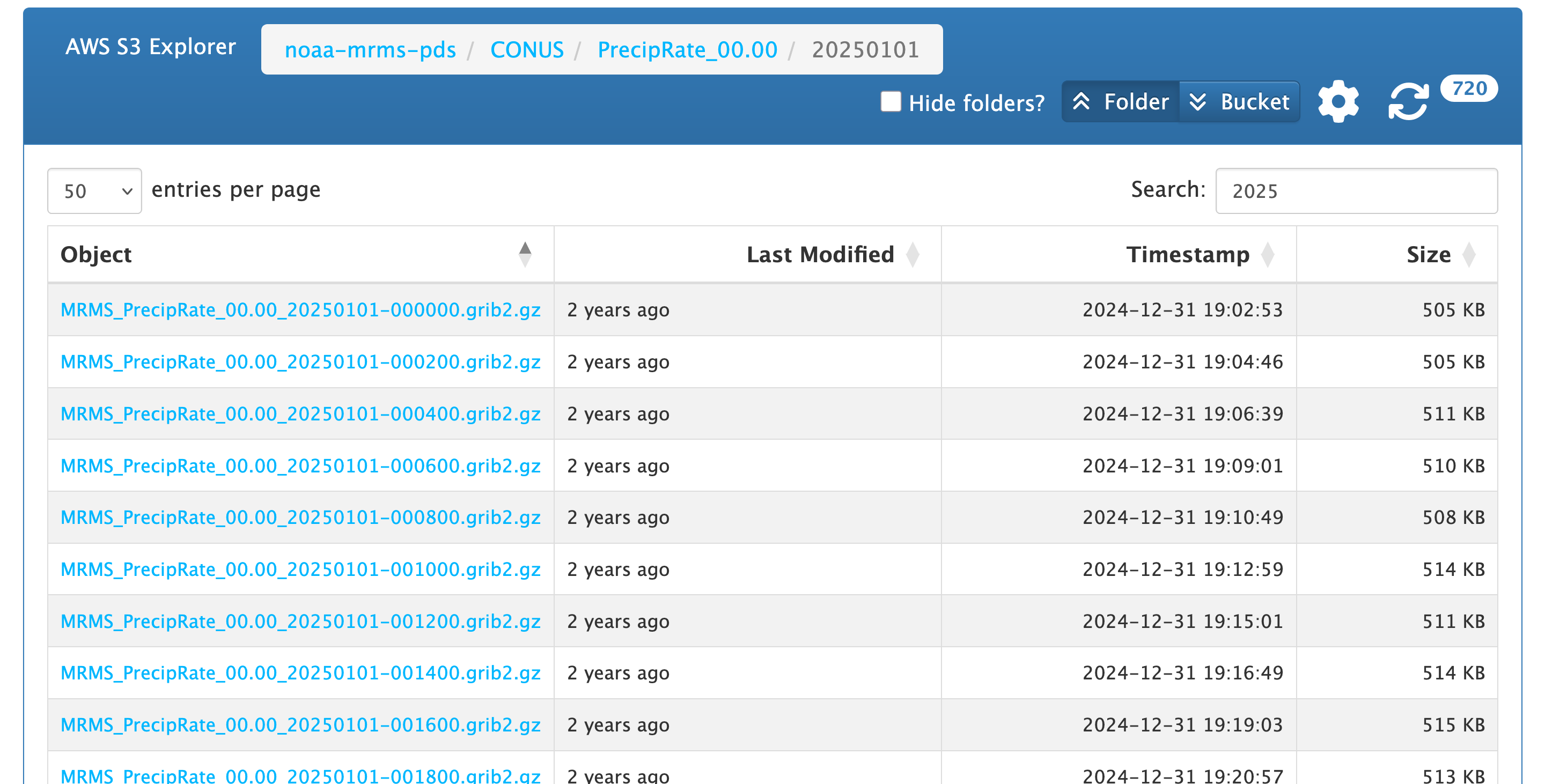
The NOAA MRMS data are hosted on Amazon AWS data center publicly. Because these are public data sets, you do not need any account with Amazon to download.
To download this data in your computer from Amazon’s server, you need to download AWS CLI.
You can use python script to download this data, but using AWS CLI is much easier. The CLI stands for Command Line Interface. This software runs on your terminal.
Downloading AWS CLI
Click Here to find all the commands and explanation on how to download Amazon AWS CLI
You can download the .mis file by clicking here
Or you can run the command bellow on your terminal.
msiexec.exe /i https://awscli.amazonaws.com/AWSCLIV2.msiTo check successful installation: aws --version (In Terminal)
You can download the .pkg file by clicking here
Then run the .pkg file.
To check successful installation: aws --version (In Terminal)
To check location: which aws
To install the AWS CLI on Linux, run the following commands:
curl "https://awscli.amazonaws.com/awscli-exe-linux-x86_64.zip" -o "awscliv2.zip"
unzip awscliv2.zip
sudo ./aws/install
To check successful installation: aws --version
Subsetting Data & Downloading Using CLI
When using the aws s3 sync command to download data, the command needs to know where on your computer to save the files. The destination folder path.
You have to create a folder. Depending on your operating system the format looks slightly different.
Example 1: Creating a folder on your Desktop
mkdir C:\Users\YourUsername\Desktop\mrms_rain_2025Example 2: Creating a folder on a secondary drive (e.g., D: drive):
mkdir D:\mrms_rain_2025Example 1: Creating a folder on your Desktop
mkdir -p ~/Desktop/mrms_rain_2025Example 2: Creating a folder on an external drive or media mount
mkdir -p /media/user/external_drive/rain/2025You can also create the folder using graphical file explorer (Finder or File Explorer). Then to find the exact command-line path:
- Linux/Mac: Drag and drop the folder from finder to the terminal window. The terminal will automatically type out the full path for you (e.g., /Users/name/Desktop/mrms_rain_2025).
- Windows: Open the folder in File Explorer, click the address bar at the top, and copy the path (e.g., C:\Users\Student\Documents\mrms_rain_2025).
Putting It Together in the Sync Command
Option A: Using Absolute Path (Recommended)
Option B: Using Relative Paths
If you have already navigated inside your destination folder in the terminal using cd, you can use ./ (which stands for “current folder”):
1. Navigate to your target folder first
cd ~/Desktop/mrms_rain_20252. Sync directly into the current directory using ./
aws s3 sync s3://noaa-mrms-pds/CONUS/PrecipRate_00.00/ ./ --exclude "*" --include "2025*/**" --no-sign-requestIf You Want to Download Only a Few Specific Months
1. Downloading single month (example: August 2025)
Replace --include "2025*/**" with --include "202508*/**"
2. Downloading Multiple Specific months (Example: Aug through Dec)
Use multiple include flags together:
--exclude "*" \
--include "202508*/**" \
--include "202509*/**" \
--include "202510*/**" \
--include "202511*/**" \
--include "202512*/**" \--include "2025{08,09,10,11,12}*/**"Multiline works universally across Windows, Mac and Linux
Extracting the Rain mm CSV from .grib2.gz Files
The NOAA MRMS rain data will be in .grib2.gz compress file. It has the rain data for the whole continental US.
You can use python script to extract rain mm. Python

Few Things on the Python Script
NOAA MRMS uses 360 longitude. So, Lehman college: 360 - 73.8945 = 286.1055°
The MRMS calculate the rain in mm/hr. The python script converts it into mm/2min by dividing 30. (Line 89)
Make sure to change the base_path to your local storage folder.